
项目短视频
操作示范如下(时长18:18)
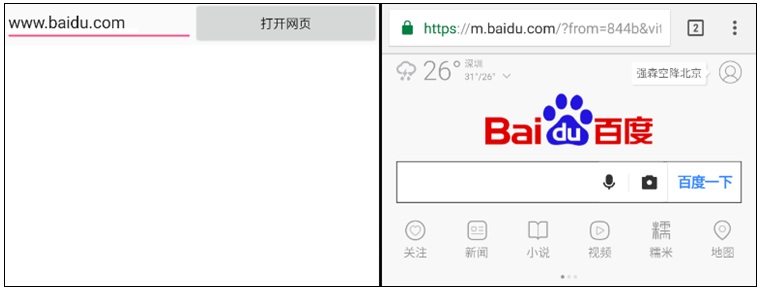
【例7-1】 应用WebView浏览网页
新建项目Chap07,创建布局文件activity_webview.xml及控制文件WebViewActivity.java。
布局文件activity_webview.xml的源代码
<?xml version="1.0" encoding="utf-8"?>
<LinearLayout xmlns:android="http://schemas.android.com/apk/res/android"
xmlns:tools="http://schemas.android.com/tools"
android:layout_width="match_parent"
android:layout_height="match_parent"
android:orientation="vertical"
tools:context=".WebViewActivity">
<LinearLayout
android:layout_width="match_parent"
android:layout_height="match_parent"
android:orientation="horizontal">
<EditText
android:id="@+id/editText1"
android:layout_width="wrap_content"
android:layout_height="wrap_content"
android:layout_weight="1"
android:ems="10"
android:hint="http://www.baidu.com"
android:inputType="textPersonName"
android:text="" />
<Button
android:id="@+id/button1"
android:layout_width="wrap_content"
android:layout_height="wrap_content"
android:layout_weight="1"
android:text="打开网页" />
</LinearLayout>
<WebView
android:id="@+id/webView1"
android:layout_width="match_parent"
android:layout_height="match_parent" />
</LinearLayout>
控制文件WebViewActivity.java的源代码如下:
package com.example.chap07;
import androidx.appcompat.app.AppCompatActivity;
import android.os.Bundle;
import android.view.KeyEvent;
import android.view.View;
import android.webkit.WebView;
import android.widget.Button;
import android.widget.EditText;
public class WebViewActivity extends AppCompatActivity implements View.OnClickListener {
EditText edit;
Button openWebBtn;
WebView webView;
@Override
protected void onCreate(Bundle savedInstanceState) {
super.onCreate(savedInstanceState);
setContentView(R.layout.activity_webview);
edit = (EditText)findViewById(R.id.editText1);
openWebBtn= (Button)findViewById(R.id.button1);
webView = (WebView)findViewById(R.id.webView1);
openWebBtn.setOnClickListener(this);
}
@Override
public void onClick(View view) {
String url = edit.getText().toString();
webView.getSettings().setJavaScriptEnabled(true);
webView.getSettings().setAllowContentAccess(true);
webView.getSettings().setAllowFileAccess(true);
webView.setLayerType(View.LAYER_TYPE_SOFTWARE,null);
webView.loadUrl(url);
}
@Override
public boolean onKeyDown(int keyCode, KeyEvent event) {
if((keyCode==KeyEvent.KEYCODE_BACK) && webView.canGoBack()){
webView.goBack(); //返回webView的上一页面
}
return true;
}
}
打开项目配置文件AndroidManifest.xml,在application中添加一个属性,这是Android SDK升级造成。
<manifest ...>
<application
...
android:usesCleartextTraffic="true"
...>
...
</application>
</manifest>
配置文件AndroidManifest.xml的源代码如下:
<?xml version="1.0" encoding="utf-8"?>
<manifest xmlns:android="http://schemas.android.com/apk/res/android"
package="com.example.chap07">
<application
android:allowBackup="true"
android:icon="@mipmap/ic_launcher"
android:label="@string/app_name"
android:usesCleartextTraffic="true"
android:roundIcon="@mipmap/ic_launcher_round"
android:supportsRtl="true"
android:theme="@style/AppTheme">
<activity android:name=".WebViewActivity">
<intent-filter>
<action android:name="android.intent.action.MAIN" />
<category android:name="android.intent.category.LAUNCHER" />
</intent-filter>
</activity>
</application>
<uses-permission android:name="android.permission.INTERNET" />
</manifest>

